Custom Edit properties include:
- Admin Role: A comma-delimited list of Roles that can use the Web Part.
- User Class Name: Select the User Class that is created.
- Default Workspace: Workspace to add the new user to.
- User can immediately login?: If checked, then the new user is approved and can immediately log in.
- Save User Name as Email?: If checked, then the user name is expected to be an email address.
- Display Additional Properties: if checked, then adds properties from the configuration file. If the Configuration file is blank, then the embedded configuration file is used for the display.
- Configuration File: The Workflow Configuration File used to display properties of the user code class.
- Requires Question and Answer?: If checked, then the user is prompted to enter a security question and answer.
- Auto-generate Password?: If checked, then the password is not prompted, but is automatically generated.
- Captcha Type: None, Image.
- None: The captcha form is not used on the form.
- Image: The captcha form is displayed on the form.
- Auto-Login Type: Manual, Automatic or Auto-cookie.
- Manual mode allows the user to login using the login form.
- Automatic mode automatically logs the user in after being created.
- Auto-cookie mode creates a cookie in the user's browser. This logs the user in automatically when they surf the domain.
- Create User Action: Select the Create User Action:
- None
- Another Account: allows user to add another user
- Return to Previous Page: returns user to previous page
- Login: logs the new user in immediately
- Login and return to Previous Page: logs the new user in immediately and returns to the previous page
- Login and route to destination: logs the new user in immediately and proceeds to destination page
- Cancel Page Url: The page address that the user is routed to if the user clicks the 'Cancel' button. If blank, clears the form and returns to this page.
- Destination Page Url: The page address that the user is routed to after the new user is created. If blank, returns to this page.
- Send Email?: If checked, then a registration email is sent to the user when the user is created.
- Email Link Text: used if Send Email is checked. The text associated with the email link sent to the user to confirm registration.
- Confirm Url: used if Send Email is checked. The absolute address of the page used in the sent email to confirm the registration.
- bcc List: if send email is checked, the email is sent to the new user's email address in the form. A blind copy can be sent to additional users in this semi-colon delimited list or email addresses.
- Email Subject: The subject of the registration email being sent.
- Email Body: The body of the registration email being sent.
- Email Domain Blacklist: the path to an xml file that contains a list of domains. If the email domain is listed in the xml list, then the profile is not accepted, because the 'email domain is not accepted'.
- Jazz Common Edit Properties
|
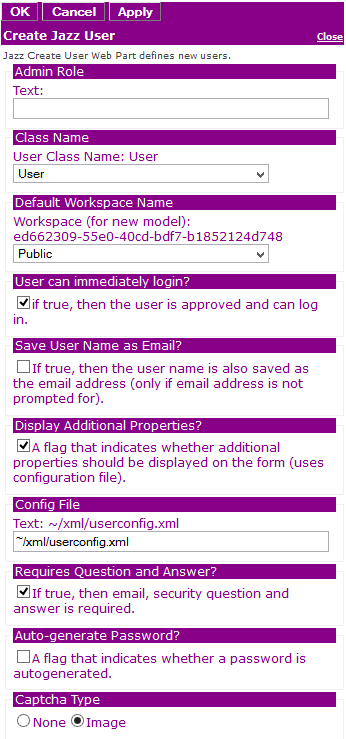 Figure 3a: Editor for Jazz New User form |